
App · Finance
You carry the total in your head. The total in your head is wrong.
Every expense, income and transfer you log sits on a side, business or personal, and Finance keeps the two apart. Accounts in any currency, a budget per side, reports your accountant can read, and a CSV of your lines whenever you want it. It runs inside Oknola, on the same sign-in as your notes.
Finance is in early access and opens account by account. Start your Oknola trial, then ask us to turn Finance on for your account.
What ships, and in what order: the Roadmap
Business and personal
One card pays for both. Finance keeps them apart.
At the start, one card pays for both lives. By the time it matters, at an invoice, a tax return or the day you decide whether you can afford to hire, nobody can say which half was the business. So in Finance the side is on the line, not on the account.
A side on every line.
Each account has a default side, and any line can override it. Pick Personal or one of your businesses at the top, and the totals, the budget and the reports show that side alone.
Split one payment across sides.
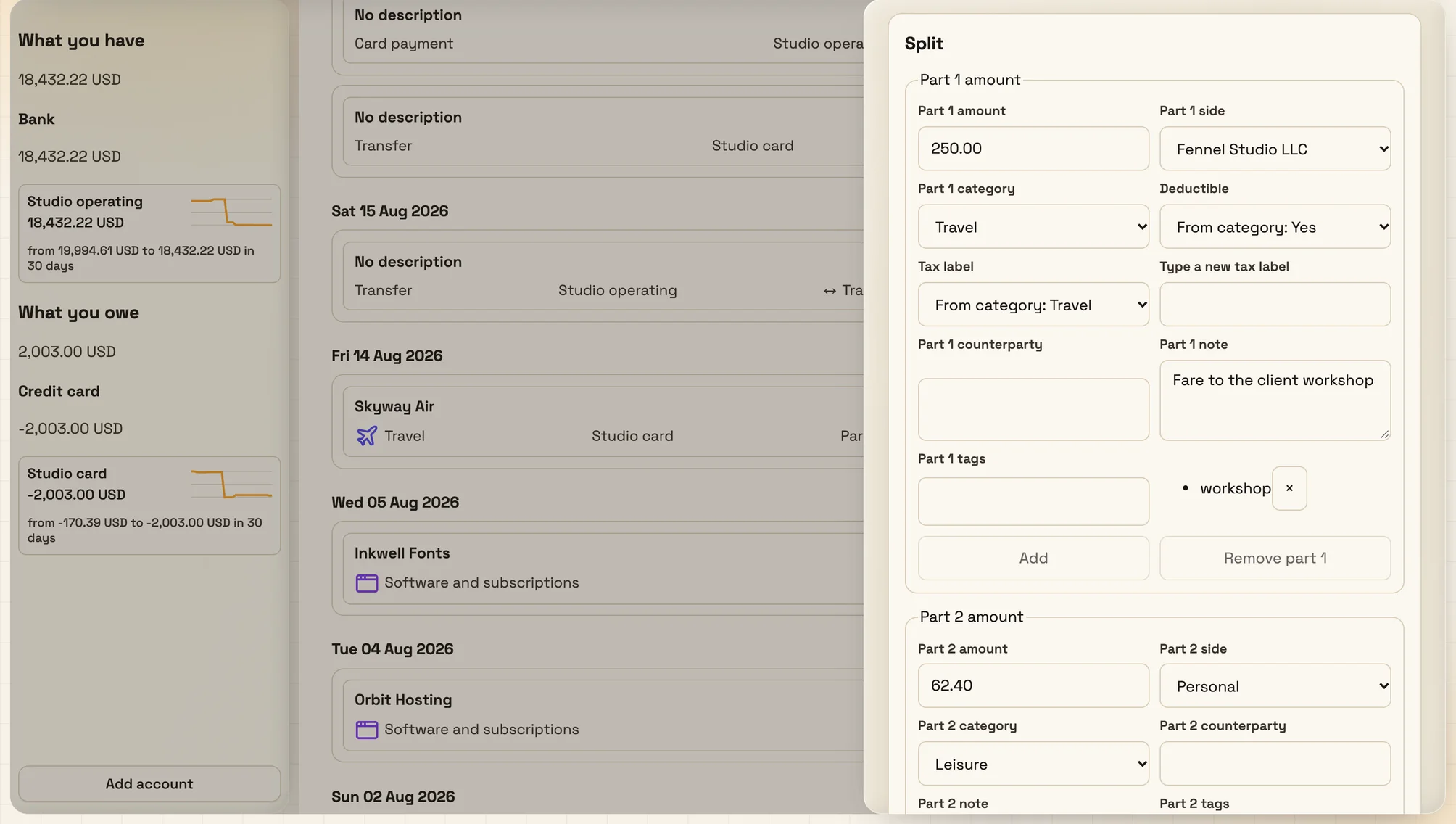
One payment, two lives: split a line into parts, each with its own side, category and tax label, and the parts must add up exactly before it saves.
Deductible, or not, and a label for it.
On a business line, mark whether it is deductible and give it a tax label from a list you extend. The category sets the default, so most lines need no touch. Labels and totals only, not tax advice.
Between you and your business.
Money you took out, money you put in, personal spending the business paid and the reverse, each shown as what it is instead of hiding inside a total.
More than one business, or a household.
Add each entity with its own currency and the month its tax year starts. A household or a club gets a side too, without the tax features.
Accounts
What you have, what you owe, on one screen.
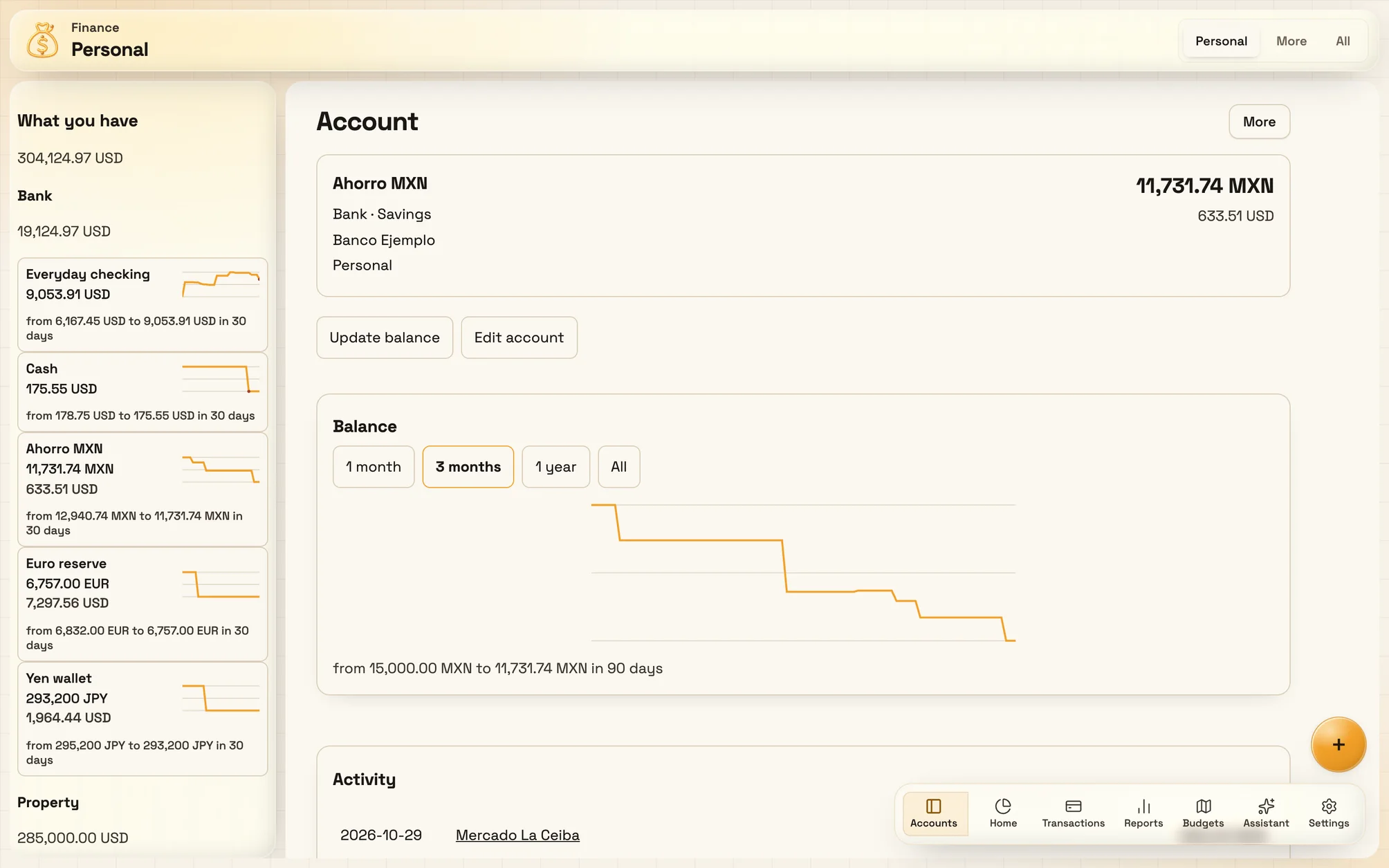
Add an account once. Finance keeps its balance, its history and its place in your net worth.
Every kind of account.
Bank, credit card, loan, debt, investment, crypto, property, vehicle and valuables, each on a side. Money you owe a friend is an account; so is a car.
Kept by hand, by design.
Nothing connects to your bank. You state a balance, update it when it changes, and Finance tells you when your lines and your stated balances disagree. No bank login, nothing to break.
Charted over time.
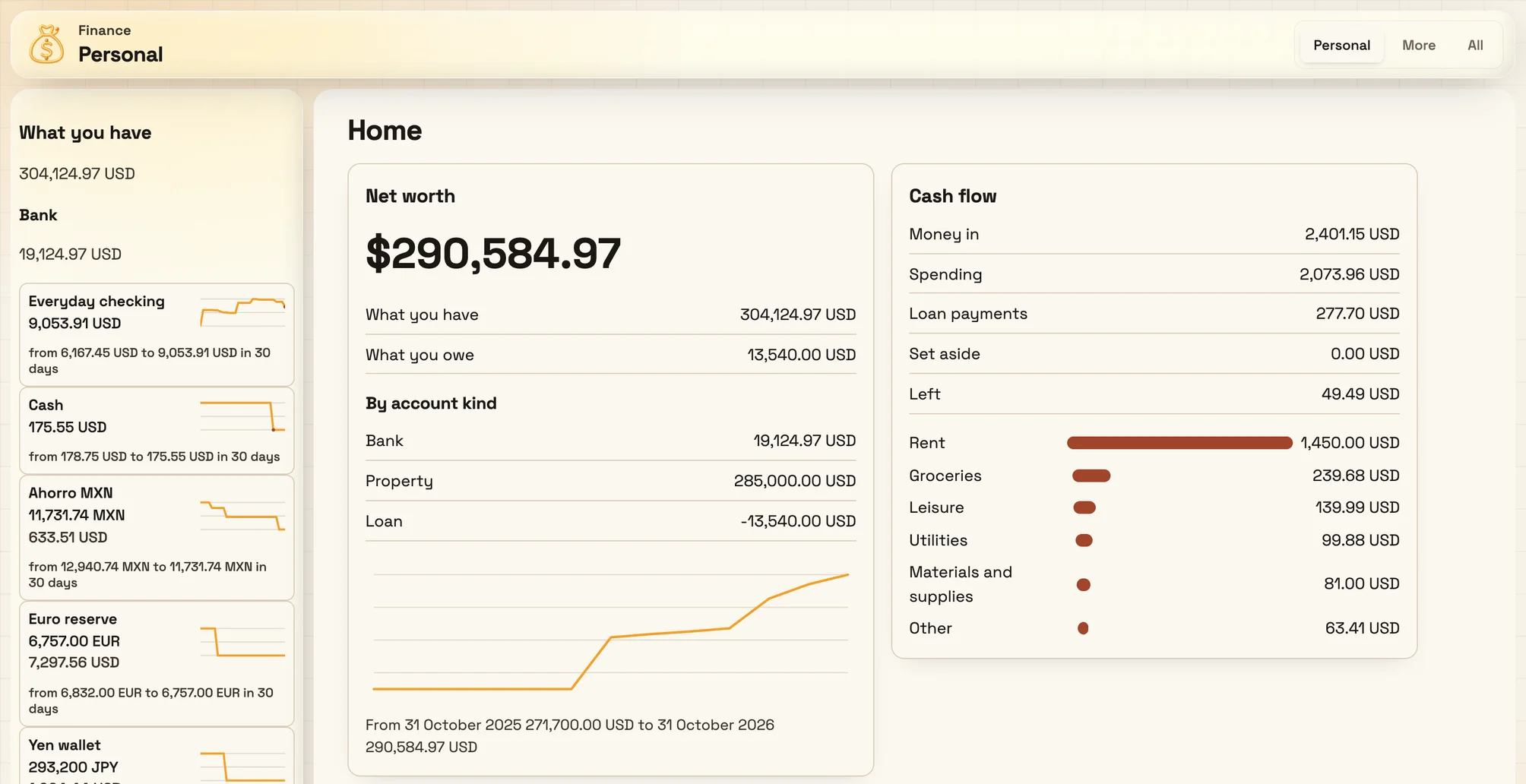
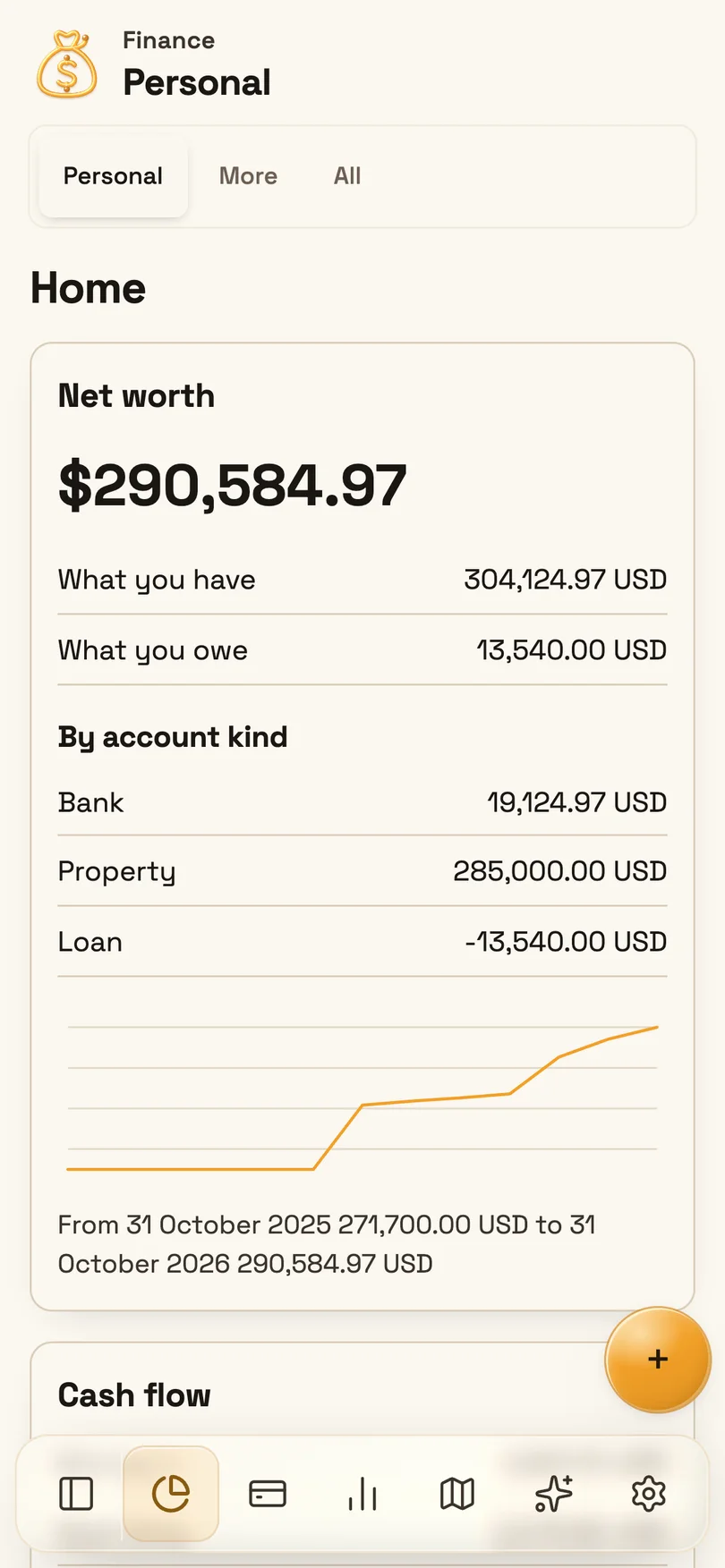
Net worth over the year on Home, and each account’s balance over a month, a quarter, a year or its whole life.
Any currency, at the rate you got.
Each account keeps its own currency. On the web, lines in another currency get their day’s rate from a public central-bank feed automatically, for the currencies it covers. Type the rate you got any time, on a line or for a day in Settings; a rate you typed is never overwritten. Finance saves it on the line, so old totals never move. A line without a rate shows as rate pending and stays out of the totals until it has one. USDT and USDC count as one dollar.
Net worth by kind.
What you hold and what you owe, by account kind, per side, with any account still waiting for a rate listed apart instead of guessed.
Bring your history in.
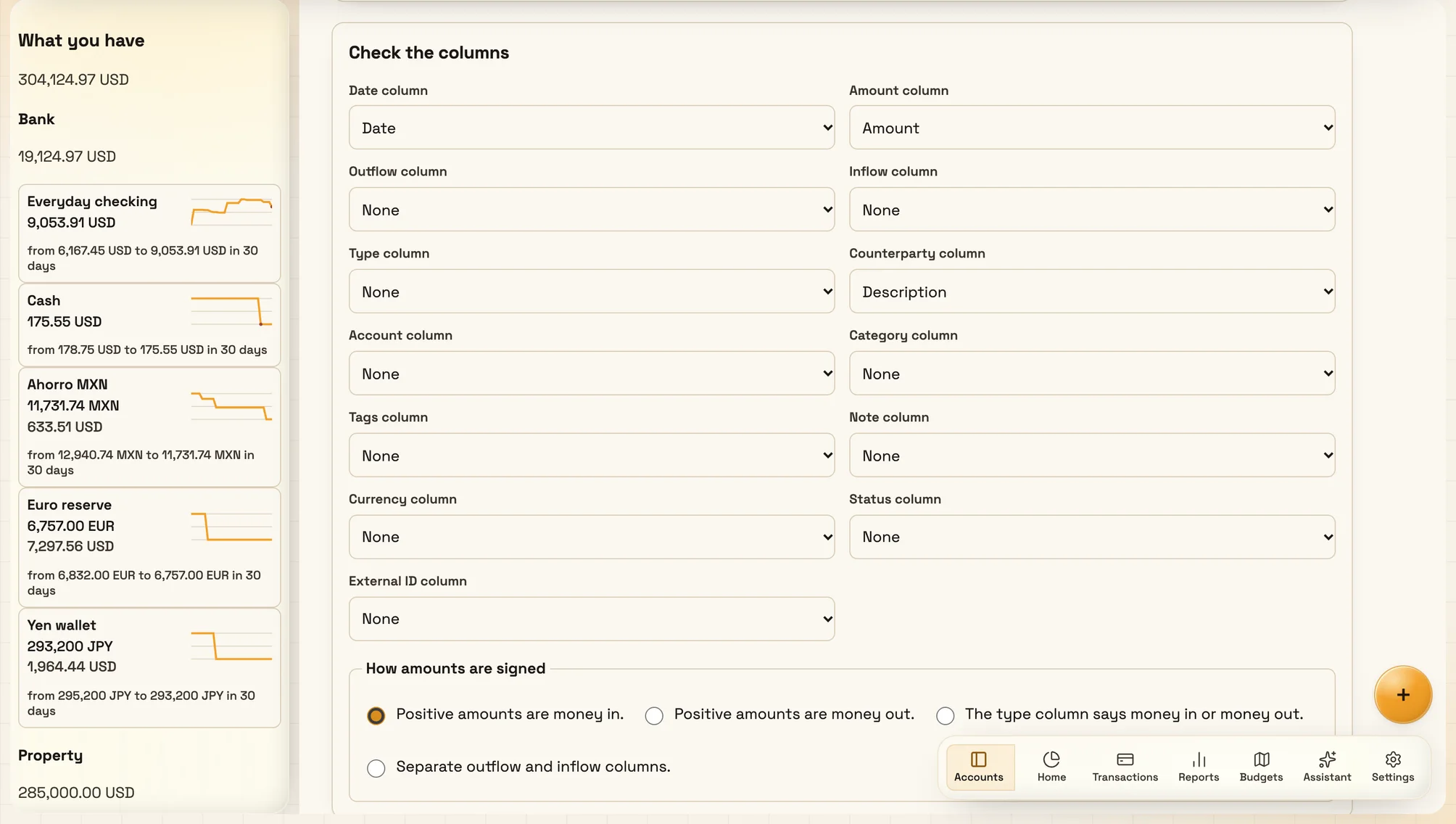
Import past lines from a CSV, and create the accounts it names as you go.
No bank feeds and no market prices for stocks or crypto: investment and crypto accounts hold the balance you type.
Transactions
Lines you can find, fix and trust.
Tap +, pick Expense, type the amount, Save. The account, the side and today’s date are already filled in. It works offline, and syncs when you are back.
Add by hand.
Expense, income, transfer or a balance update, amount first, dated today. The form sets the sign, so a typed minus never flips a line.
Your own categories, tags and notes.
Categories with one level under them, each with a colour and an icon. Tags you name, a note, and who you paid.
Find it.
Search the counterparty, note, tag or amount, then filter by account, category, deductible, status and date range. Filters stack.
Edit in bulk.
Select the lines and change their category, side, deductible flag, tax label, status or treatment, add a tag, or exclude them, in one go. Finance says how many lines it will change before it saves.
Transfers matched on import.
When an import brings in two lines that look like the same money moving between your accounts, Finance suggests the pair. Confirm it and it stops counting as spending or income. Say no and it never suggests that pair again.
Import a CSV.
Pick the file, check the columns, match the accounts, preview the lines, import. Duplicates are skipped and counted. When a date or a decimal could read two ways, Finance asks instead of guessing. Right after an import, Undo this import removes its lines; the accounts it made stay.
A short list of what needs you.
Lines without a category, suggested transfers, lines waiting for a rate, transfers missing their other side. Each one a tap away.
No rules engine yet: categories are set by you, by the import’s exact category names, or in bulk.
Budgets
A budget that reads your lines.
One plan per side per month. What you spent comes straight from your transactions, so there is nothing to copy over.
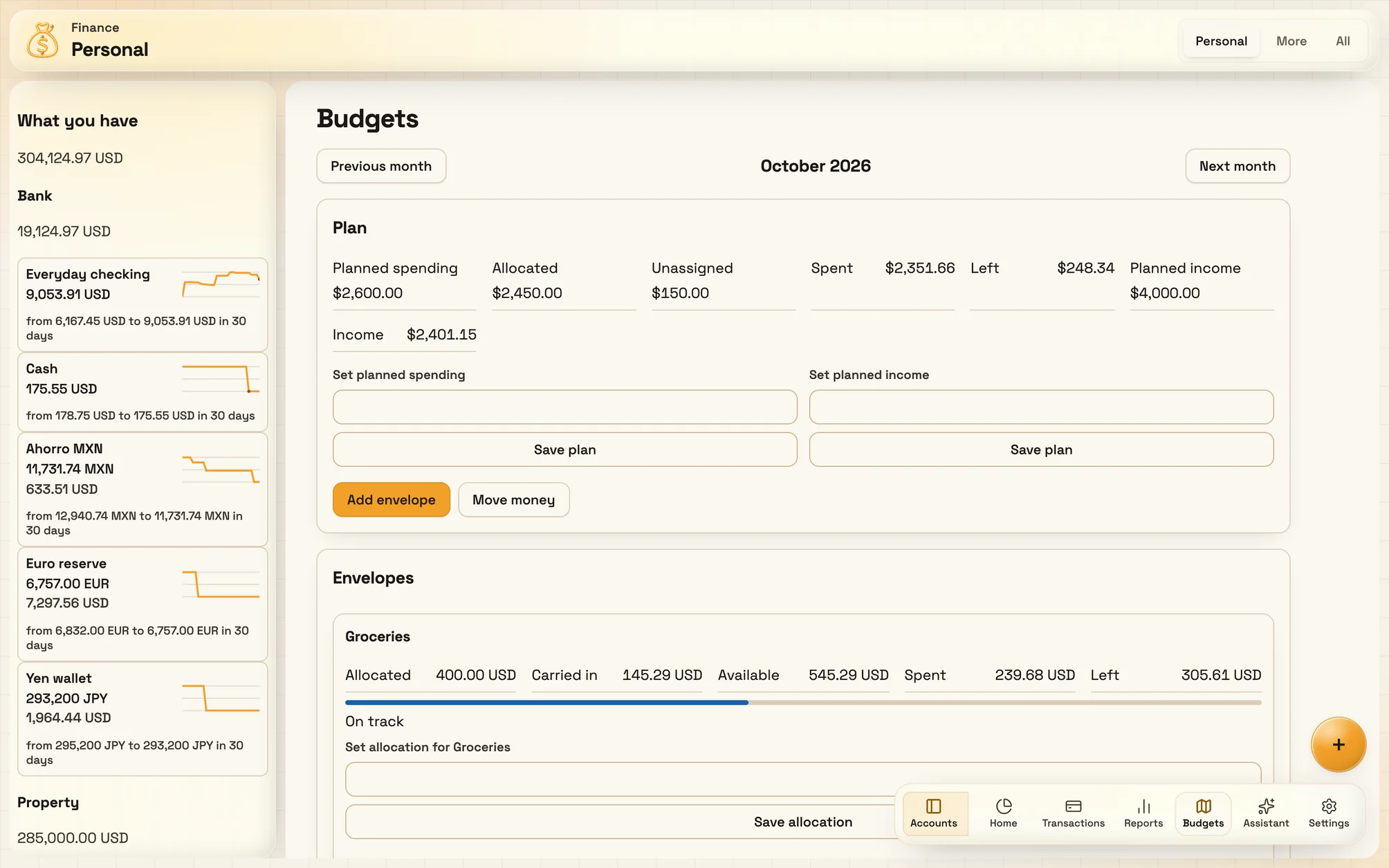
An envelope per category.
Set planned income and planned spending for the month, then give each category its envelope. Finance shows what is allocated and what is still unassigned.
Planned against spent.
Each envelope shows spent, left and a plain status: on track, near the limit, over the limit.
Carry what is left.
Choose, per envelope, whether leftover carries into next month.
Move money between envelopes.
Mid-month, take from one envelope and give to another. No spreadsheet.
Start from last month.
A new month starts empty or as a copy of last month’s plan.
What the plan missed.
Spending outside any envelope and uncategorised spending sit in their own rows, and one-time lines stay out of the plan on purpose.
Reports
Reports your accountant can read.
This month, last month, this year, the tax year or any range, per side. Cash flow shows the previous period beside it.
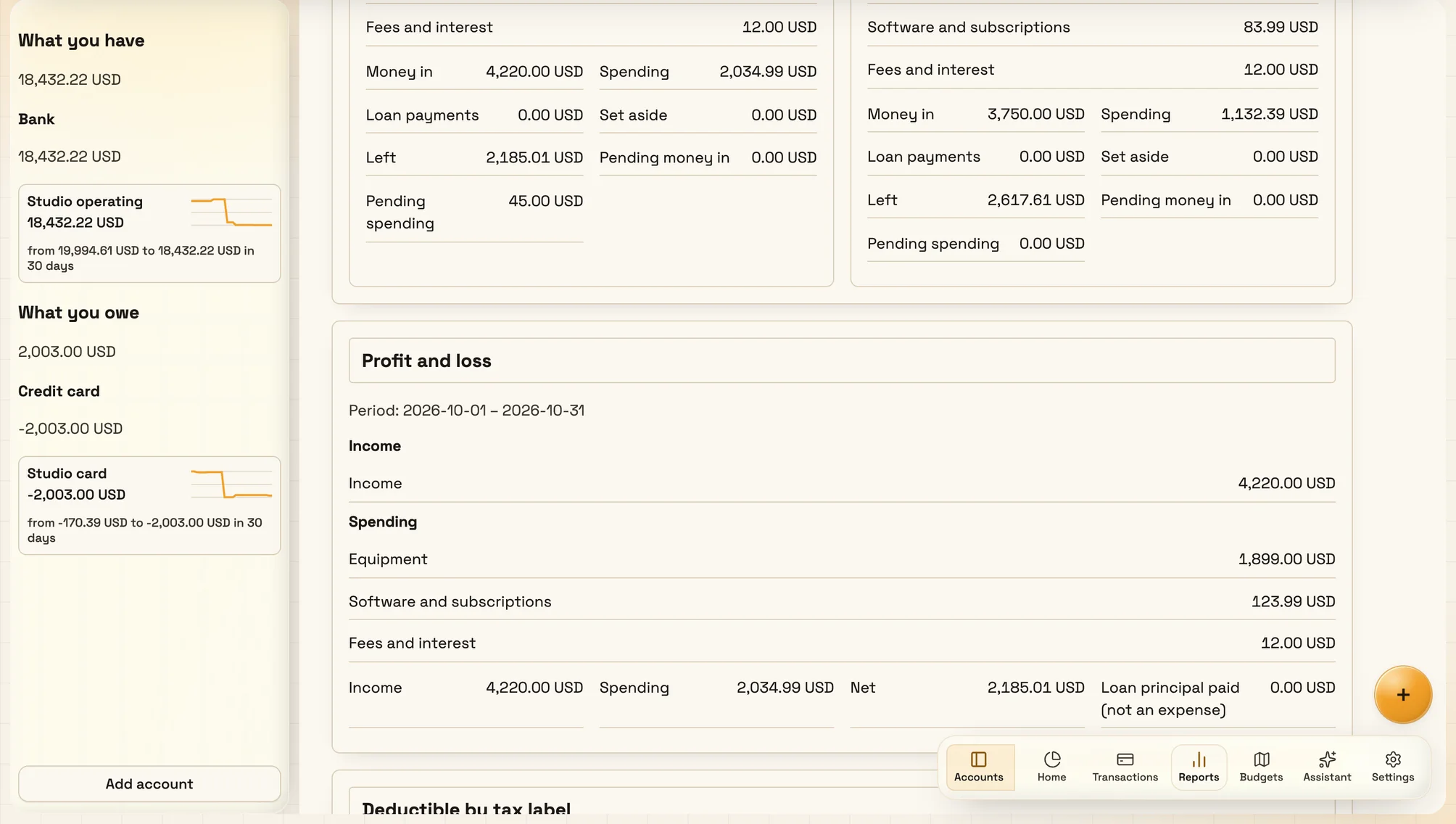
Cash flow.
Money in, spending, loan payments, what you set aside and what is left, with pending lines shown as pending. Home shows the last six months as a trend.
Profit and loss per business.
Income and spending over the business’s own tax year. Loan principal is listed apart, because paying it back is not an expense.
Deductible by tax label.
Every deductible total grouped by the label you gave it, with the not-deductible column beside it. Labels for your accountant, not advice.
Net worth over time.
Per side, by date, as a chart and as a table.
This month against last.
On Home: money in and spending beside last month, and this month’s top spending groups.
The accountant pack.
For one business and one tax year: a lines file and a totals-by-label file, as CSV. Hand them over and keep the originals.
Assistant
Ask your money a question.
Type a question in plain words. The assistant looks up what it needs on the side you are on, answers from those figures, and shows what it looked at.
Planned: the Finance assistant. A preview, not in the app yet.
- How much did the studio spend on software this tax year?
- Which envelope is over this month?
- What moved between me and the business since January?
Off until you turn it on.
It stays off in Settings until you switch it on, and you can switch it off again.
It says what it sends.
Your question, this side’s account names, kinds and balances, its category names, and what its lookups return (which can include a line’s payee, note and tags) go to Oknola’s AI service. Never your notes, and never your other sides.
Answers that show their work.
Each answer lists the lookups behind it, so you can open the figure it came from.
Changes you confirm.
It can propose a category, a deductible flag, tags, an exclusion or a transfer match. Nothing changes until you tap Confirm.
Your data
Same sign-in. Its own database.
Finance is not a folder of notes. It is a ledger in Oknola’s database, under your account and nobody else’s, synced to each device you sign in on.
Your money stays yours.
Export your lines as CSV for any side and any date range, and the accountant pack per business and tax year. Files any spreadsheet opens.
Separated by design.
Business and personal never add up in a total or a report unless you ask for the All view, and even then each side keeps its own figures.
Leave whenever.
Deleting your Oknola account deletes your Finance data from our database at once (copies in our daily backups expire on their own), so export first.
A monthly note for your agents.
Finance writes one plain summary note per side into your notes each month, so the agents that read your notes can read your month too.
Planned: the monthly Finance note. A preview, not in the app yet.
Where it runs
Inside Oknola, on the web today.
Finance opens from the Apps shelf in the same window as your notes, on a phone-sized layout when the screen is small. Lines you log offline sync when you are back.
The Mac and Android apps run Finance too: the Download page All apps
Questions
Before you ask for it.
Free trial
Start with the Core.
Finance is in early access and opens account by account. Start your Oknola trial, then ask us to turn Finance on for your account.